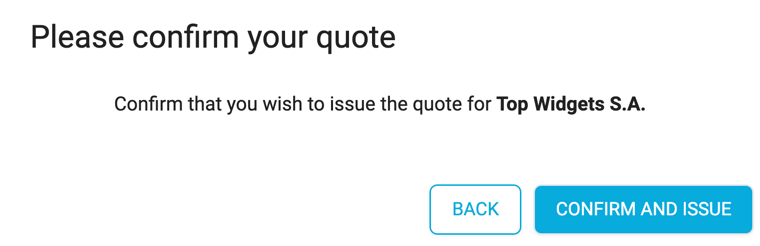
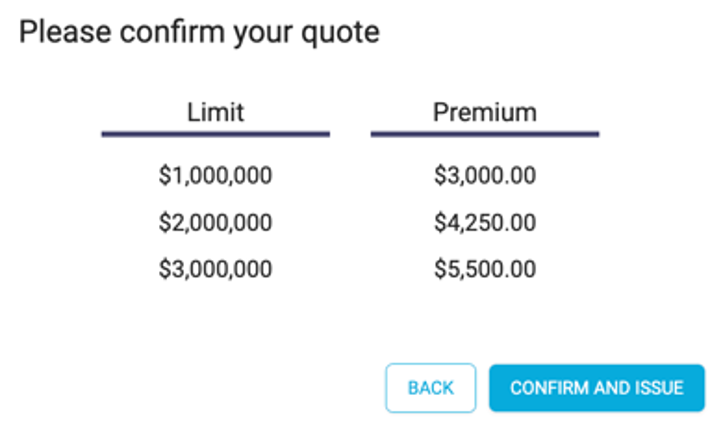
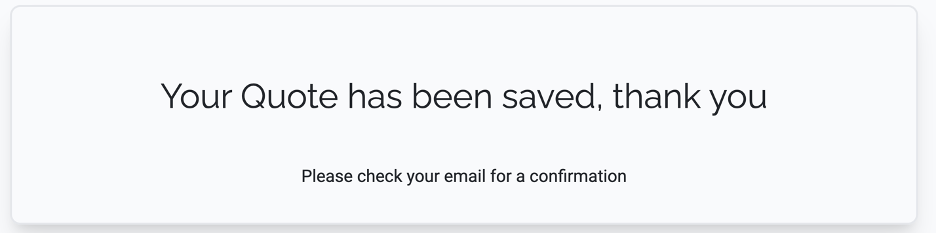
When a broker generates a quote in Lime Street Marketplace that requires approval before continuing, the underwriter can easily perform a series of simple steps to issue the quote using the Low Touch feature:
- Action the New Submission email
- Perform security check
- View and read the submission (provide prices if applicable)
- Confirm the submission
After actioning the email and verifying your details in the security check, the View Submission page opens in your browser. This page allows you to view all the details of the submission and the answers to the questions entered by the broker during the quoting process.
View Submission Page
- Quoted/VRI Status where prices are provided
- Referred Status where prices are not provided and should be supplied by you during the Issue Quote process
Quotes of Quoted/VRI Status where Prices are Provided
Example of View Submission Page - Quoted/VRI Status where Prices are Provided:
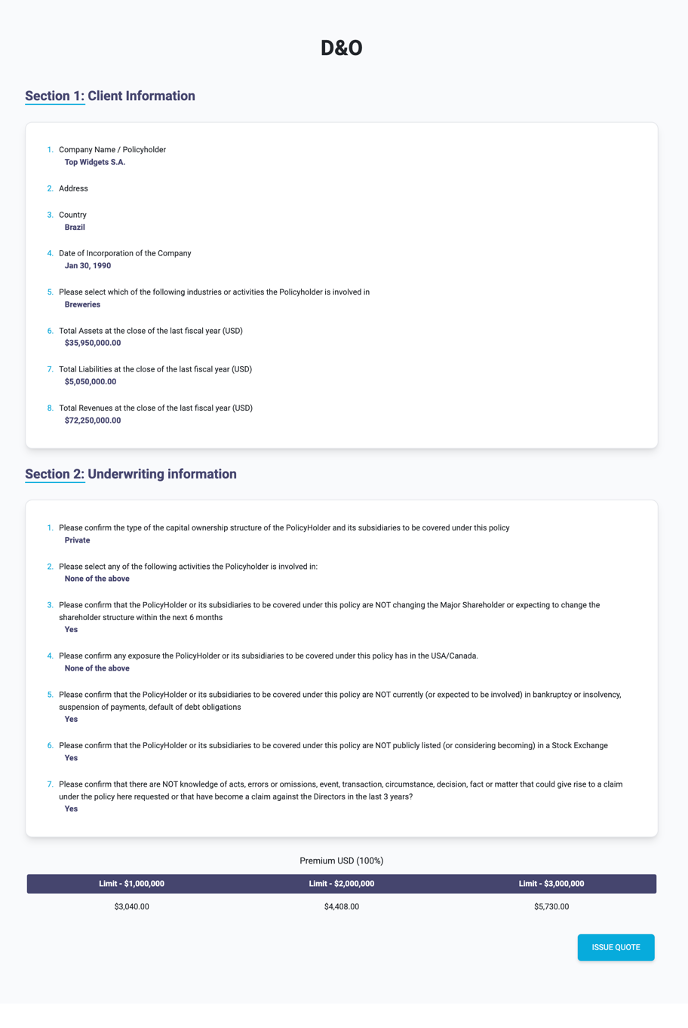
Read through all the details for the quote
Quotes of Referred Status where Prices are not Provided
Example of New Submission Page - Referred Status where Prices are not Provided:
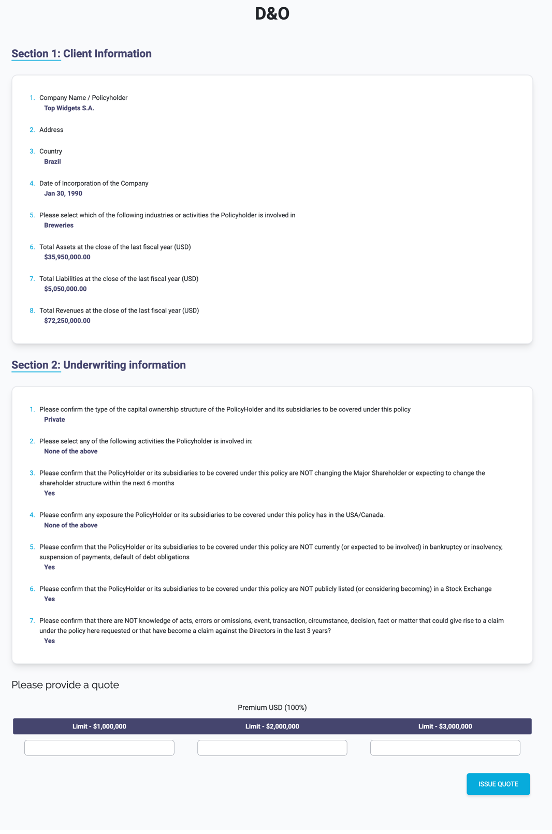
Read through all the details for the quote and provide premium values in the Quote Options section.
Example of Quote Options Section:

Enter the premium values into the fields.
Confirm and Issue Quote