It is easy to add a new user in the Lime Street Marketplace. Admin users can do this in the User Management section of the console.
This article is for Admin users both Broker Admins and Underwriter Admins or those users in the User Management group. Non-admin users are unable to access User Management. The images display Broker ones but the process is the same for Underwriters except for Groups
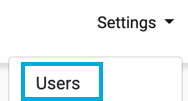
To add a new user press the Settings>Users option in top menu:
Click on the New button:
This will display the ‘New user’ page.
Example of New User Page:
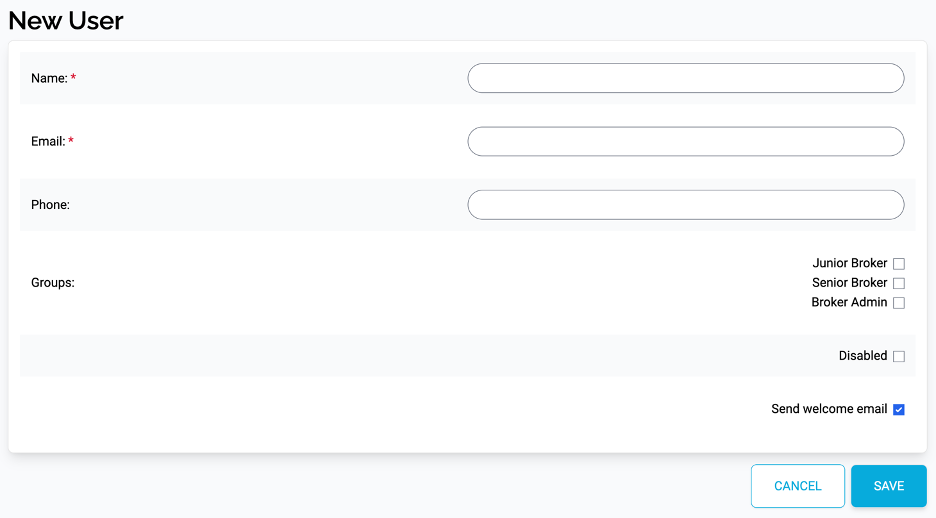
Name and Email
In the Name box, enter the name of the new user.
In the Email box, enter the email address of the new user. The email is required to log in to the Console.
Name and Email are mandatory fields and must be filled in before creating the user.
Phone
In the Phone field, enter the contact number for the user.
Group
Groups have been set up within the Lime Street Marketplace to facilitate permissions and rights to the system. A group contains a set of permissions. When a user is added to a group, it allows that user to perform the tasks assigned to that group
You can assign a group to the new user by check marking the appropriate group box. Multiple roles can be assigned to a user.
Disabled
You can prevent a user from logging in to the system by disabling the account. Check mark the Disabled box.
Send Welcome Email
When a new user is created you have the option to send the user a welcome email. The email will include a link for the user to follow to create a password for the console.
By default, in the New User page, the ‘Send Welcome email’ box is checked, leaving it checked will ensure that the new user is sent a welcome email.
If you do not want the user to be sent a welcome email uncheck the box.
Save User
Once you have entered the details for the new user press the Save button:
You are returned to the User Management page and the new user is added to the list of users.