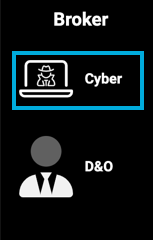
To create a new quote, press the Product name in the side menu to reveal the Product Menu:
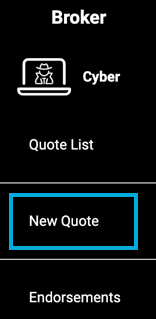
Then press the New Quote option:
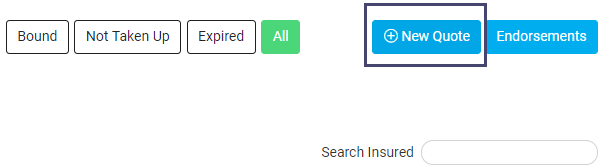
Alternatively, in the Product's Quote List page press the New Quote button:
Questionnaire Page
You are presented with the Questionnaire Page for the product. The form is split into sections where questions of similar content are grouped together.
Example of a questionnaire:
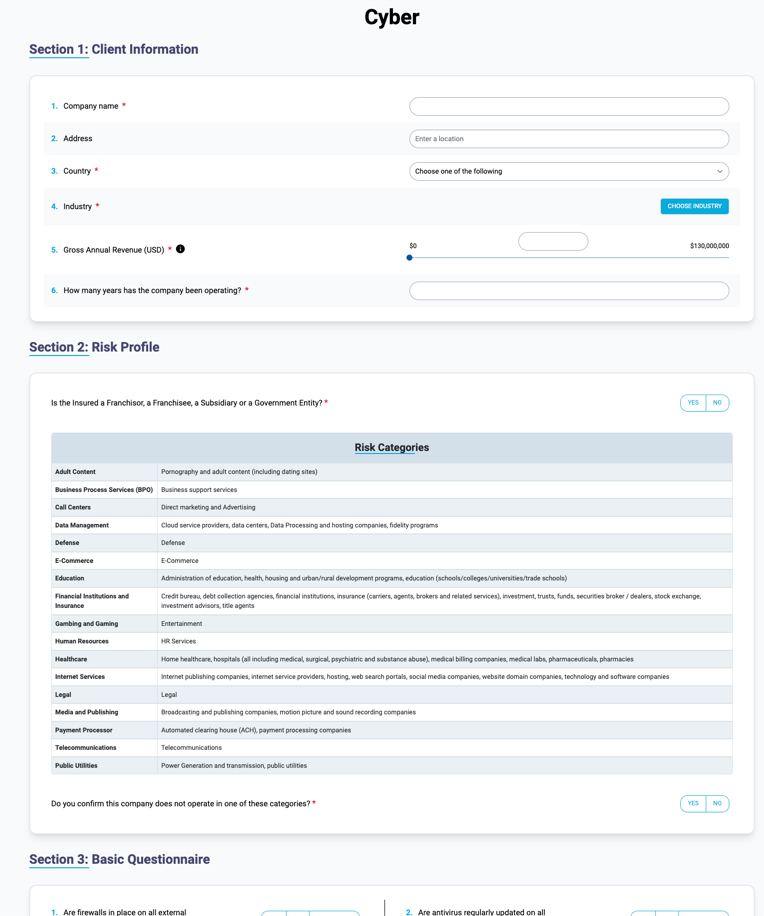
Work your way through the form and fill in the fields in each section. Once you have answered all the relevant questions, press the Generate Pre Quote button at the bottom of the page:

Pre Quote Results
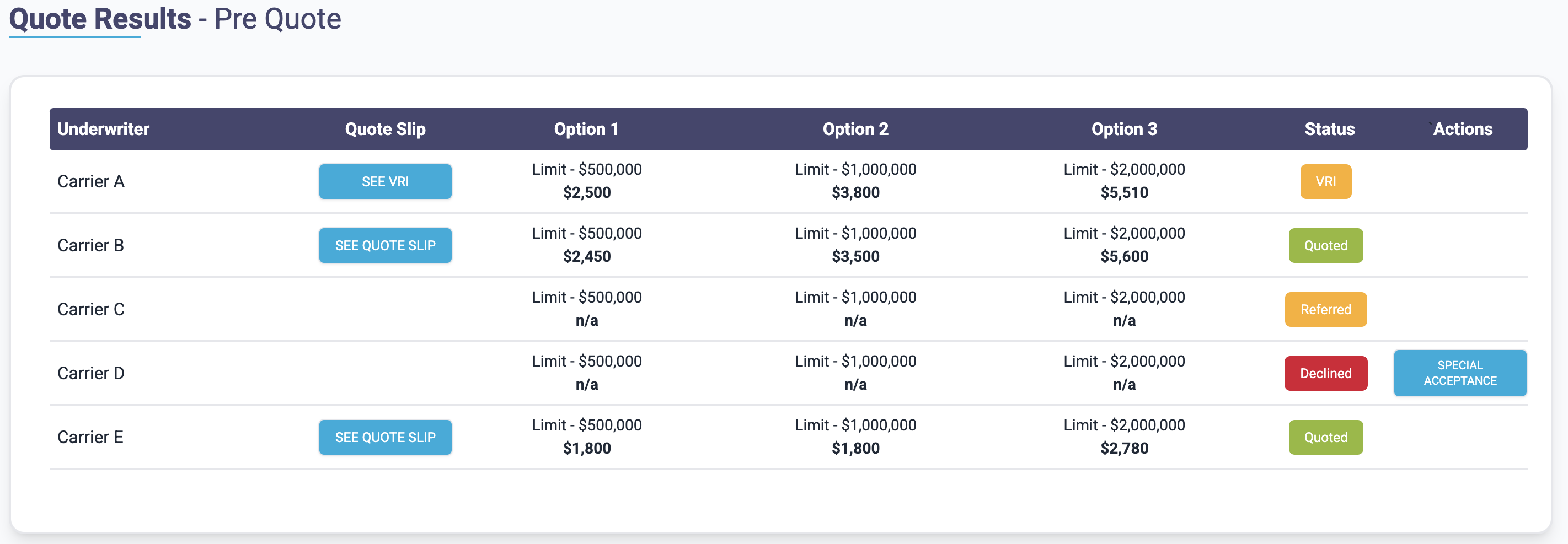
Once calculated the values for Deductible and Premium for each of the Limit Options you selected are displayed for each Underwriter in the Quote Results - Pre Quote section:
Make the Quote Live
After the Pre Quote Results are generated and displayed on-screen, you should press the Generate Live Quote button to continue:

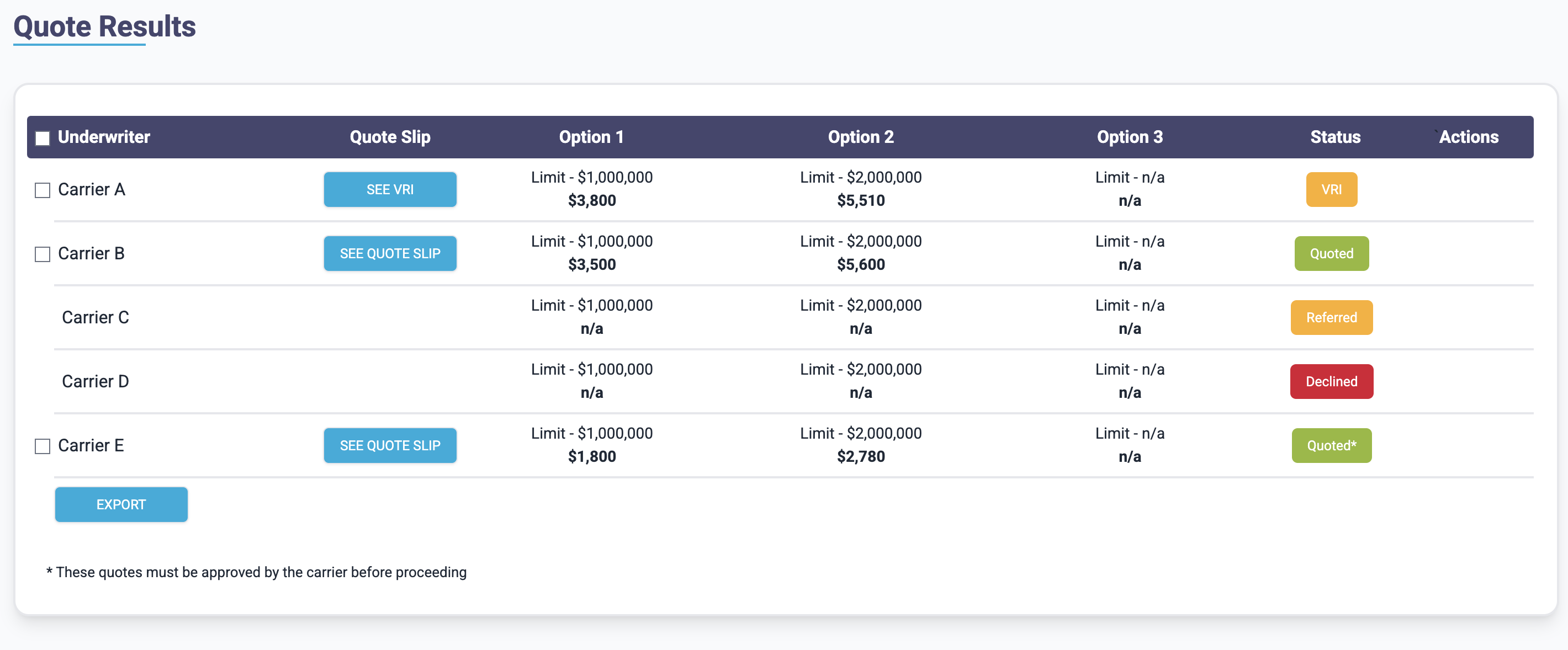
If applicable, this will send emails to the relevant underwriters informing them that a new submission is available and if necessary, proceed with steps to approve it.
Buttons
The buttons at the bottom of the Create Quote page change depending on the stage of the quote creation:
Complete All Fields:

Ensure you have entered answers to all the required questions. You cannot generate a quote until all mandatory fields have been completed.
Generate Pre Quote:
You have answered all the relevant questions and you can proceed to calculate the quote.
Press the button to calculate the pre quote.
Generate Live Quote:
The quote has been created but is not live. You can now press the Generate Live Quote button.
If applicable, this will initiate the email process to underwriter users informing them of the new submission.
Note – if you do not press this button then the quote is still created and available in the system but is not live.