Once a user account has been created, you may need to update or change the details. It is easy to edit users in the Lime Street Marketplace. Admin users can do this in the User Management section of the console.
This article is for Admin users both Broker Admins and Underwriter Admins or those users in the User Management group. Non-admin users are unable to access User Management. The images display Broker ones but the process is the same for Underwriters except for Groups.
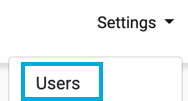
To edit a user press the Settings>Users option in top menu:
To edit a user, click on the Edit button for the user in Users list.
Example of User in User List:

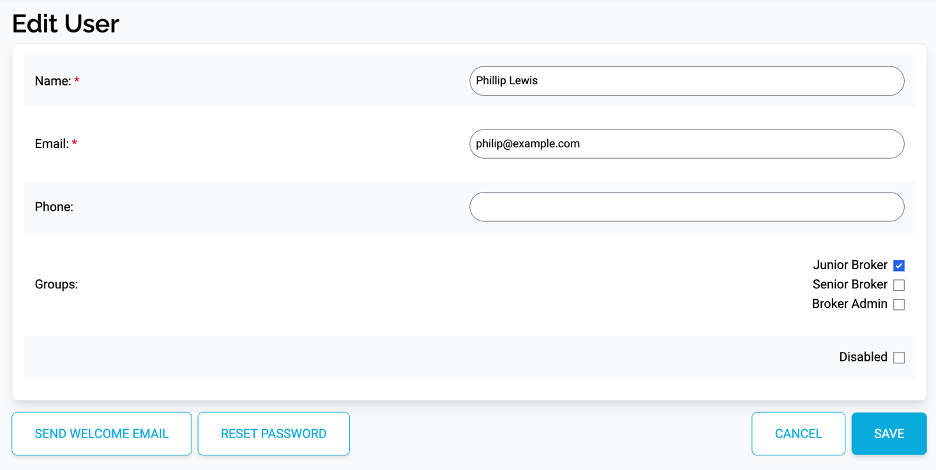
This displays the Edit User page. In this page, you can change the user’s details, groups and send a reset password email for the user.
Changing/Updating User Details
Name, Email and Phone
The fields in this page are populated with the existing values saved for the user, you can amend the details by typing in the boxes (for Name, Email and Phone)
Groups
Change the user’s groups by selecting/deselecting the group check boxes where appropriate.
Disabling a User Account
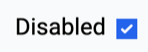
You can prevent a user from logging in to the system by disabling the account. Check mark the Disabled box.
When an account is disabled, it can be clearly seen as that status in the User List in the Last Login field:

Enabling a Disabled Account
The account is not deleted from the system and can be reinstated by unchecking the Disabled box.
The user will then be able to use the account to log in and use the system.
Save User
Once you have updated the details for the user press the Save button.
You are returned to the User Management page and the user details are updated.
Further to updating user details, there are two features in the Edit User page to allow you to resend the Welcome Email and send a Reset Password email where a user has forgotten their password.
Resend Welcome Email
For convenience, there is a Send Welcome Email button to allow you to resend the welcome email to the user to allow them to finalize setting up their account.
If you require to send the Welcome Email to the selected user, then press the Send Welcome Email button:
A dialog will be presented, press OK to confirm. An email will be sent to the user’s email address.
Reset Password
The Edit User page also allows you to request a reset password email to be sent to the user if they have forgotten their password or there is a requirement for it to changed.
If a user has asked to reset their password press the Reset Password button:
A dialog will be presented, press OK to confirm.
The user will receive an email with instructions on how they can reset their password.