When a broker requests a bind for a quote in Lime Street Marketplace, the underwriter can easily perform a series of simple steps to bind the quote using the Low Touch feature:
- Action the Firm Order email
- Perform security check
- View Binding Slip
- Download Slip
- Upload Stamped Slip
- Bind
Let's look at each step.
Step 1: Firm Order Email
When a Broker progresses a quote and requests it to be bound, you will receive a Firm Order email with summary details of the quote.
In your email application, look for the Firm Order email.
Example of New Submission Email:
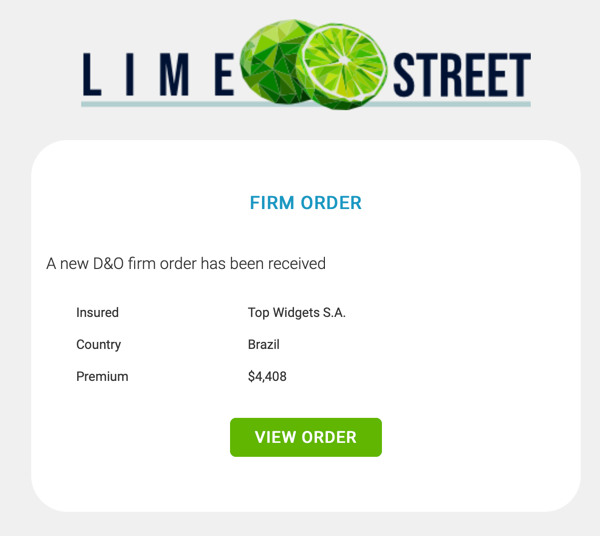
In the email, click on the View Order button:

Once pressed a Verification Check may be displayed.
Step 2: View Binding Slip
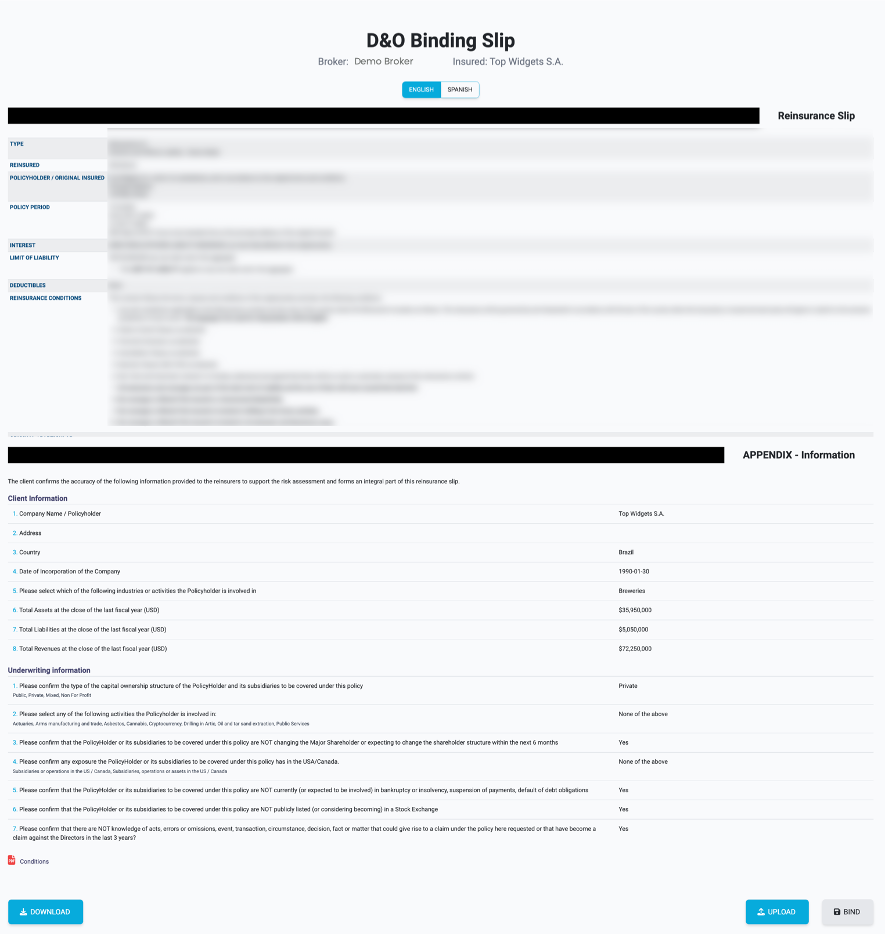
The View Binding Slip page opens in your browser.
In this page you can:
- Check the binding slip details
- Download the slip in the required language, ready to be stamped
- Upload the signed slip, once you have added your stamp
- Bind the slip
Example of View Binding Slip Page:
Step 3: Download Binding Slip
Download the Binding Slip PDF by pressing the Download button:
Proceed to add your stamp to the downloaded Binding Slip.
Step 4: Upload Stamped Slip
Once ready to upload the signed document, press the Upload button to add the stamped Binding Slip into the system:
Example of File Explorer after pressing Upload Button:
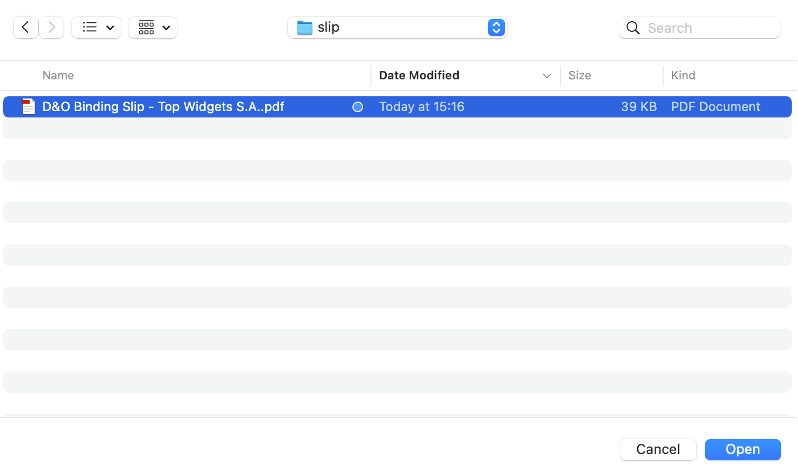
Select the file in the file explorer window and press Open (or similar button) to proceed.
Step 5: Bind the Quote
Back in the View Binding Slip page the Bind button is now enabled.
Press the Bind button:

A confirm dialog is presented.
Example of Confirm Dialog:
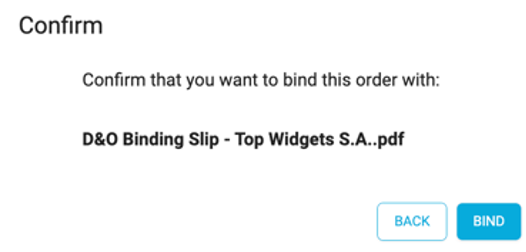
Press the Bind button in the dialog to complete the bind process.
Example of Confirmation Message:
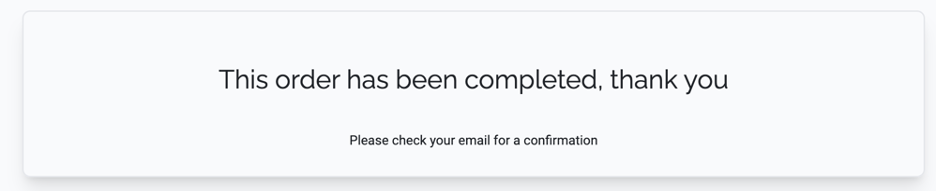
Once successful, the quote will become a Bound Risk and the file will be uploaded as the stamped Binding Slip.
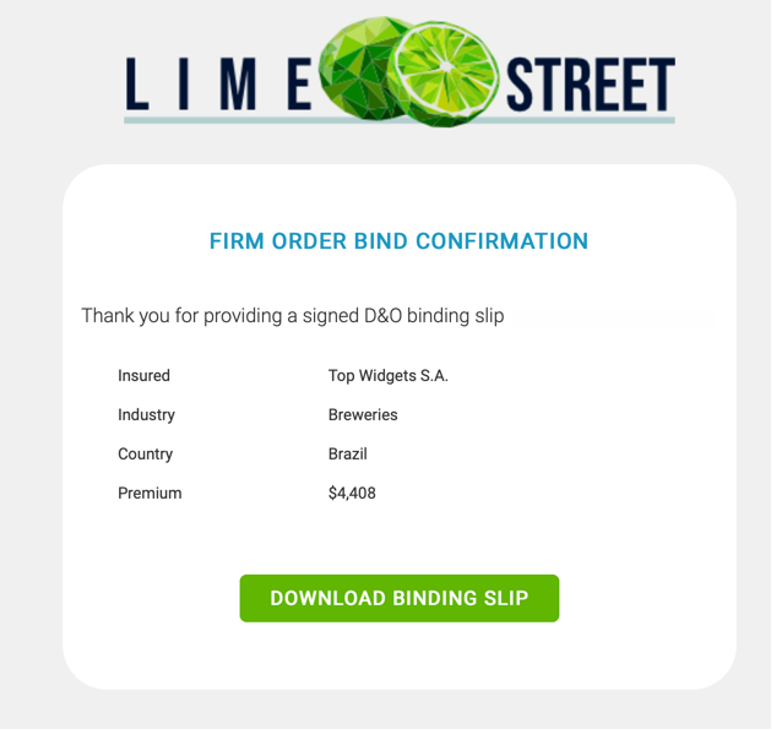
You will also receive a Confirmation email for the bound risk.
Example of Bound Risk Email: