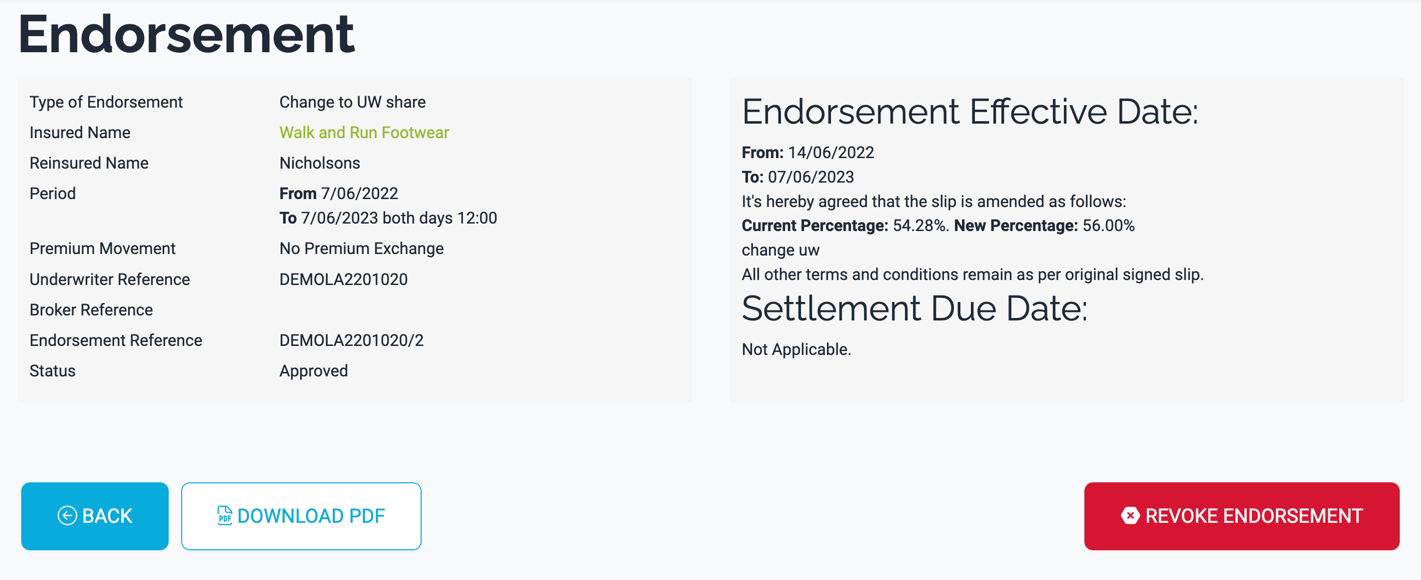
This article is for Underwriter users. Broker users are unable to approve endorsements
.
An open endorsement can be approved in the
View Endorsement page by underwriter users.
There are two ways to approve an endorsement:
- Select a stamp for the endorsement to be automatically stamped during the approval process
- Upload your own stamped PDF
Select a Stamp
If you want to have the endorsement PDF automatically stamped by the system, you can use the Select a Stamp section:

In this section you will see all the stamps you have added in Settings>Stamps.
Chose the stamp you want to add to the endorsement PDF by selecting it. It will be highlighted:
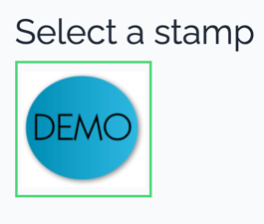
Once you have selected a stamp the Approve button will be enabled:

Press the Approve button and the endorsement will change from Open to Approved status and the system will automatically stamp the PDF with your chosen stamp and upload it.
You will now be able to view it in the Closed Endorsement list and the stamped PDF available to download.
Upload Stamped PDF
If you’d prefer to stamp the endorsement pdf yourself, external to the system, then you can download the unstamped pdf first by pressing the download button:
Stamp the PDF as you would routinely do.
Once you have stamped the pdf you can use the Upload Stamped PDF section:
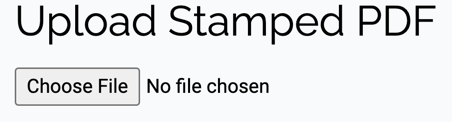
Press the Choose File button. Locate and select the stamped PDF you have created for the endorsement. Once you have selected a file the Approve button will be enabled:
Press the Approve button and the endorsement will change from Open to Approved status. You will now be able to view it in the Closed Endorsement list.
Approved Endorsement
When you go to the
View Endorsement page for an approved endorsement, there are options to Download the PDF and Revoke it.